---
title: How to use AWS IoT with Alleantia Core?
description: "Do you want to collect and view in real-time all the data collected by the machines using AMAZON WEB SERVICE (AWS)? \nDiscover AWS IoT Alleantia Plugin."
---
[Skip to content](https://kb.alleantia.com/how-to-use-aws-iot-alleantia-plug-in#main-content)
English
Show submenu for translations
![Alleantia\_ATJ\_whitelogocolorbandtrasnpbg\_HR-Oct-21-2021-02-02-26-19-PM.png\]](https://kb.alleantia.com/hs-fs/hubfs/Alleantia_ATJ_whitelogocolorbandtrasnpbg_HR-Oct-21-2021-02-02-26-19-PM.png?height=40&name=Alleantia_ATJ_whitelogocolorbandtrasnpbg_HR-Oct-21-2021-02-02-26-19-PM.png)
Open main navigation
Close main navigation
- English
Show submenu for translations
- [Visit our site](https://www.alleantia.com/)
[Visit our site](https://www.alleantia.com/)
Welcome to Alleantia, Industrial IoT Edge Gateway. How can we help you?
- There are no suggestions because the search field is empty.
1. [Alleantia Knowledge Base](https://kb.alleantia.com/)
2. [Stream Data - IIoT Apps](https://kb.alleantia.com/stream-data-iiot-apps)
3. [AWS](https://kb.alleantia.com/stream-data-iiot-apps#aws)
# How to use AWS IoT with Alleantia Core?
## Do you want to collect and view in real-time all the data collected by the machines using AMAZON WEB SERVICE (AWS)? Discover AWS IoT Alleantia Plugin.
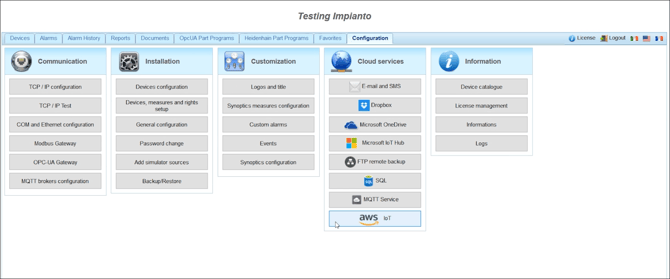
1\) Start **IotScada**, go to **Configuration** tab and click on **AWS IoT**
****
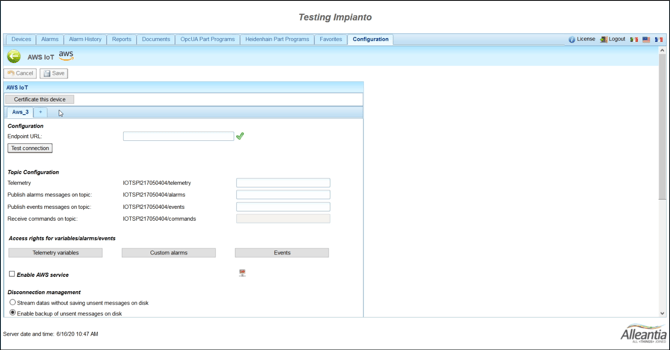
2\) Click on **Certificate this device** button
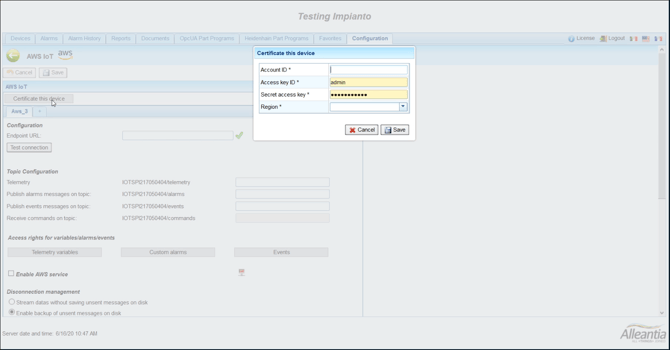
3\) A Click will open a popup where you will need to enter **Account ID**, **Access Key ID**, the **Secret access key** and the **Region**
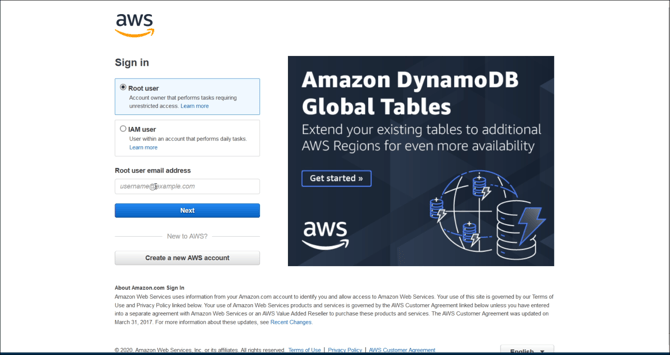
4\) Go to [**AWS.amazon.com**](https://aws.amazon.com/)and log in with your credentials.
5\) When the service starts, various information will be displayed, including the account id.
Copy the account id and enter it in the respective box.
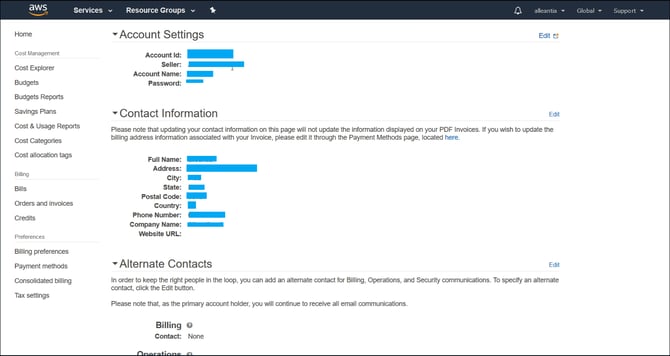
6\) The **KeyID** access and the **SecretK****eyId** are the credentials of an **IAM USER** who has the administrator rights.
Therefore you can enter the credentials of your user if you already have it or create one.
To create it go to the search bar and look for **IAM**
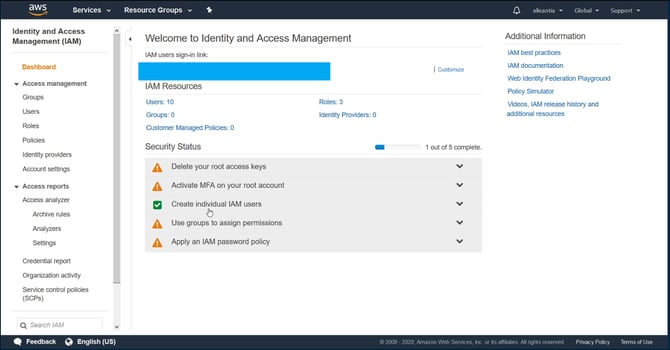
\- On the **IAM** role page, click on the **Create individual IAM users** button.
\- Then click on add user
\- Select a username and make sure to tick both boxes and click on next **Permissions**
\- After this, go to Attach existing policies directly and give **AdministratorAccess** as permissions and Click on next.
\- On the next page click again on next.
\- At this point, a summary page is reached where all the information entered is present. If everything is correct, click on **Create User**.
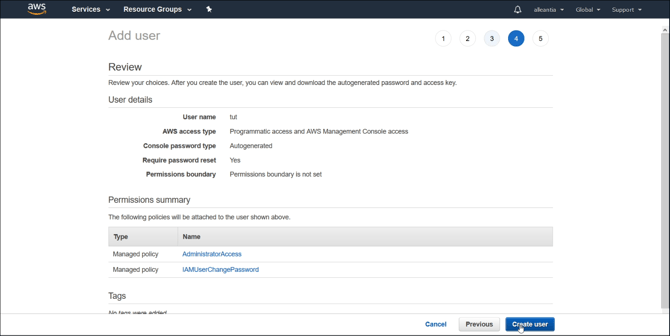
\- On the following page, you can see the **Access Key Id** and the **Secret Access Key**.
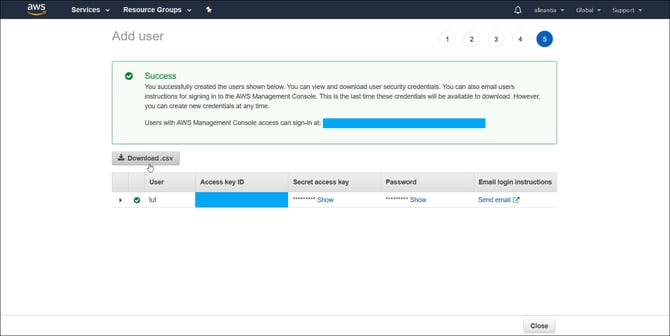
\- It is also possible to save a CSV with this information to have a local backup.
7\) Copy the two pieces of information and paste it into our previously opened popup.
By clicking on close to returning to the main page.
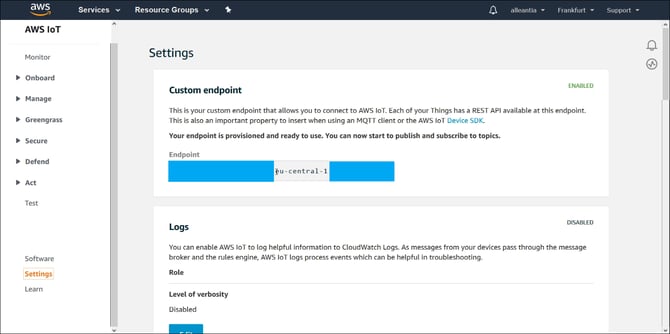
8\) Once you reach the main page, search for iotcore, and click on **Settings**.
9\) Observe the region from the endpoint shown and set it in the checkbox of our software.
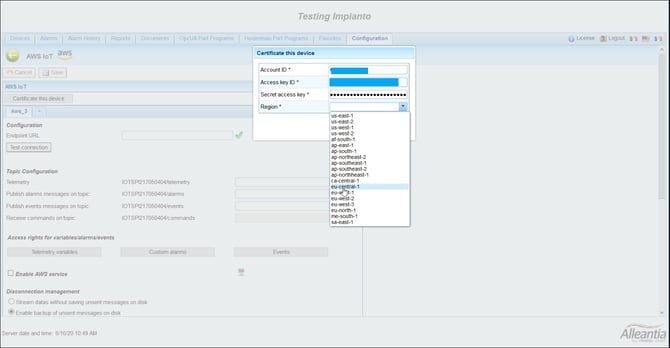
10\) Click on save to return to the main screen.
11\) Return to [**AWS**](https://aws.amazon.com/) and copy the entire endpoint and copy it to the respective textbox.
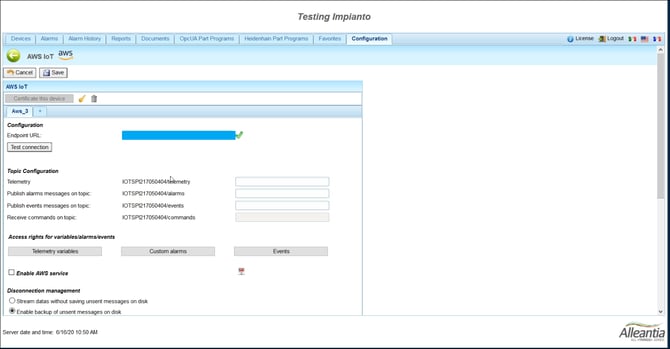
12\) Once done, click on the check to save the endpoint.
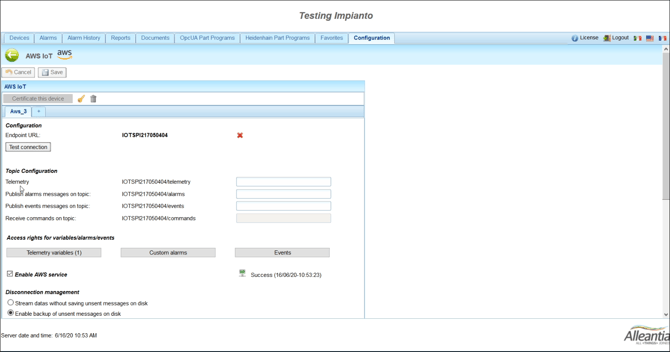
13) To test the connection you must first save everything with the Save button.
14\) You can immediately select the checkbox to enable saving the AWS plugin having selected at least one variable to send.
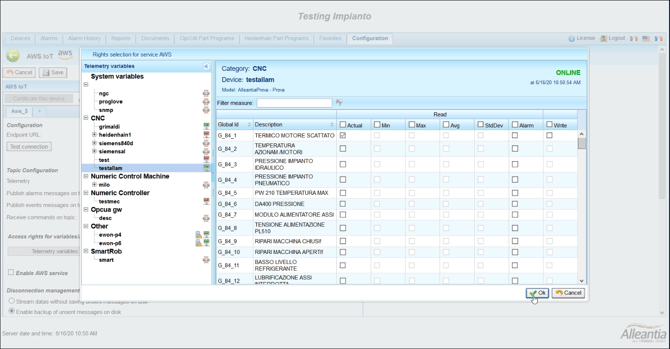
15\) Save the changes and the successful check of the sending of the data, it is possible to check the sent messages from the [**AWS**](https://aws.amazon.com/) platform.
16\) Go back to [**AWS**](https://aws.amazon.com/) and on the same page click on the test
17\) then click on "subscribe to a topic" and copy the topic on which you send the data.
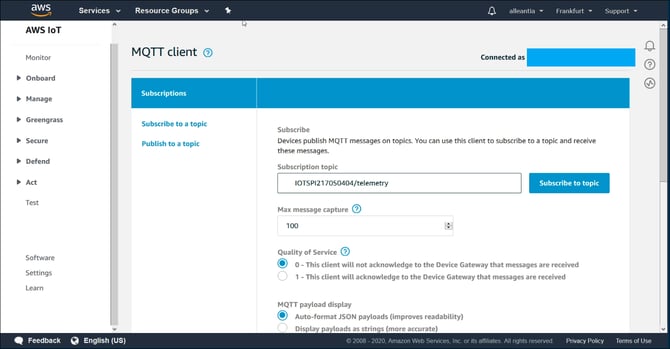
18\) Click to **Subscribe to topic**.
19\) Waiting for the sending time, the desired message will appear.
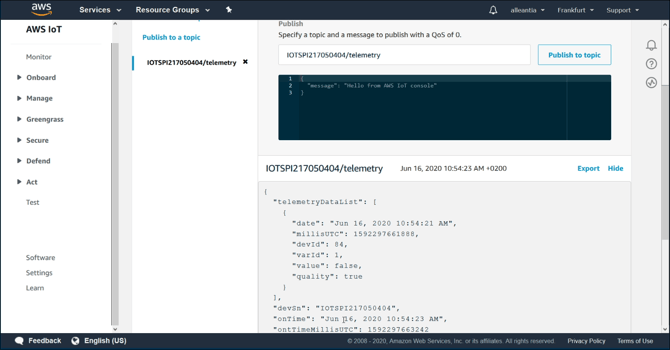
Have a look at the video tutorial:
---
### **If you need support don't hesistate to contact us**
- [Industrial IoT Connectivity in 4 steps](https://kb.alleantia.com/industrial-iot-connectivity-in-4-steps#main-content)
- [Industrial Connectivity in 5 minutes - Configuration Steps](https://kb.alleantia.com/industrial-iot-connectivity-in-4-steps#industrial-connectivity-in-5-minutes-configuration-steps)
- [Alleantia Platform Overview](https://kb.alleantia.com/alleantia-platform-overview#main-content)
- [Alleantia Core](https://kb.alleantia.com/alleantia-platform-overview#alleantia-core)
- [Cloud Portal](https://kb.alleantia.com/alleantia-platform-overview#cloud-portal)
- [Machine Drivers](https://kb.alleantia.com/alleantia-platform-overview#machine-drivers)
- [IIoT Apps - Connect Business Apps](https://kb.alleantia.com/alleantia-platform-overview#iiot-apps-connect-business-apps)
- [Site Manager](https://kb.alleantia.com/alleantia-platform-overview#site-manager)
- [Alleantia Core](https://kb.alleantia.com/alleantia-core#main-content)
- [Alleantia Core - Download and Configurations](https://kb.alleantia.com/alleantia-core#alleantia-core-download-and-configurations)
- [Licenses and Free Version](https://kb.alleantia.com/licenses-and-free-version#main-content)
- [License Management](https://kb.alleantia.com/licenses-and-free-version#license-management)
- [Alleantia Core - Free Version](https://kb.alleantia.com/licenses-and-free-version#alleantia-core-free-version)
- [Machine Drivers](https://kb.alleantia.com/machine-drivers#main-content)
- [How can I create a driver with spreadsheet template??](https://kb.alleantia.com/machine-drivers#how-can-i-create-a-driver-with-spreadsheet-template)
- [How can I create a driver with Driver Editor?](https://kb.alleantia.com/machine-drivers#how-can-i-create-a-driver-with-driver-editor)
- [Private Library](https://kb.alleantia.com/machine-drivers#private-library)
- [Machines connection configurations](https://kb.alleantia.com/machine-drivers#machines-connection-configurations)
- [Stream Data - IIoT Apps](https://kb.alleantia.com/stream-data-iiot-apps#main-content)
- [API REST](https://kb.alleantia.com/stream-data-iiot-apps#api-rest)
- [Modbus](https://kb.alleantia.com/stream-data-iiot-apps#modbus)
- [OPC UA](https://kb.alleantia.com/stream-data-iiot-apps#opc-ua)
- [AWS](https://kb.alleantia.com/stream-data-iiot-apps#aws)
- [Boomi](https://kb.alleantia.com/stream-data-iiot-apps#boomi)
- [Microsoft Azure](https://kb.alleantia.com/stream-data-iiot-apps#microsoft-azure)
- [Dropbox](https://kb.alleantia.com/stream-data-iiot-apps#dropbox)
- [MQTT](https://kb.alleantia.com/stream-data-iiot-apps#mqtt)
- [SQL](https://kb.alleantia.com/stream-data-iiot-apps#sql)
- [OneDrive for Business](https://kb.alleantia.com/stream-data-iiot-apps#onedrive-for-business)
- [TeamViewer](https://kb.alleantia.com/stream-data-iiot-apps#teamviewer)
- [Alleantia Certified Hardware](https://kb.alleantia.com/alleantia-certified-hardware#main-content)
- [Advantech](https://kb.alleantia.com/alleantia-certified-hardware#advantech)
- [Cisco](https://kb.alleantia.com/alleantia-certified-hardware#cisco)
- [Dell](https://kb.alleantia.com/alleantia-certified-hardware#dell)
- [Eurotech](https://kb.alleantia.com/alleantia-certified-hardware#eurotech)
- [Lenovo](https://kb.alleantia.com/alleantia-certified-hardware#lenovo)
- [Portwell](https://kb.alleantia.com/alleantia-certified-hardware#portwell)
- [Stratus](https://kb.alleantia.com/alleantia-certified-hardware#stratus)
- [Simulators and Starter Kit Industria 4.0](https://kb.alleantia.com/simulators-and-starter-kit-industria-4-0#main-content)
- [Simulators - PLCs, CNC, Energy meters](https://kb.alleantia.com/simulators-and-starter-kit-industria-4-0#simulators-plcs-cnc-energy-meters)
- [Starter Kit Industria 4.0](https://kb.alleantia.com/simulators-and-starter-kit-industria-4-0#starter-kit-industria-4-0)
- [Edge Operational Applications](https://kb.alleantia.com/edge-operational-applications#main-content)
- [Cobot Smart Service](https://kb.alleantia.com/edge-operational-applications#cobot-smart-service)
- [FAQs - Trouble Shooting](https://kb.alleantia.com/faqs-trouble-shooting#main-content)
- [Configurations](https://kb.alleantia.com/faqs-trouble-shooting#configurations)
- [System Setup](https://kb.alleantia.com/faqs-trouble-shooting#system-setup)
- [Interfaces to IIoT Apps](https://kb.alleantia.com/faqs-trouble-shooting#interfaces-to-iiot-apps)
- [Interfaces to Industrial Devices](https://kb.alleantia.com/faqs-trouble-shooting#interfaces-to-industrial-devices)
- [Connectivity](https://kb.alleantia.com/connectivity)
[](http://www.alleantia.com)
© 2024 Alleantia s.r.l
Copyright © 2026, ALLEANTIA SRL
```json
{
"@context" : "https://schema.org",
"@type" : "VideoObject",
"caption" : {
"@type" : "MediaObject",
"contentUrl" : "https://kb.alleantia.com/media-transcripts/31661034816/en.vtt",
"inLanguage" : "en",
"name" : "en Captions"
},
"contentUrl" : "https://6293978.fs1.hubspotusercontent-eu1.net/hubfs/6293978/Alleantia_AWS_IoT%201.mp4",
"dateModified" : "2025-09-29T12:16:29.055Z",
"duration" : "PT3M32S",
"height" : 1040,
"name" : "Alleantia_AWS_IoT 1",
"thumbnailUrl" : "https://6293978.fs1.hubspotusercontent-eu1.net/hubfs/6293978/Alleantia_AWS_IoT%201.mp4/medium.jpg",
"uploadDate" : "2020-07-02T13:57:57.545Z",
"width" : 1918
}
```