---
title: How to check for Fanuc FOCAS
description: "Learn how to check if your Fanuc CNC control supports FOCAS. Step-by-step guide covering 3 methods: CD38A Ethernet port, FOCAS2, and FOCAS1."
---
[Skip to content](https://kb.alleantia.com/how-to-check-for-fanuc-focas-#main-content)
English
Show submenu for translations
![Alleantia\_ATJ\_whitelogocolorbandtrasnpbg\_HR-Oct-21-2021-02-02-26-19-PM.png\]](https://kb.alleantia.com/hs-fs/hubfs/Alleantia_ATJ_whitelogocolorbandtrasnpbg_HR-Oct-21-2021-02-02-26-19-PM.png?height=40&name=Alleantia_ATJ_whitelogocolorbandtrasnpbg_HR-Oct-21-2021-02-02-26-19-PM.png)
Open main navigation
Close main navigation
- English
Show submenu for translations
- [Visit our site](https://www.alleantia.com/)
[Visit our site](https://www.alleantia.com/)
Welcome to Alleantia, Industrial IoT Edge Gateway. How can we help you?
- There are no suggestions because the search field is empty.
1. [Alleantia Knowledge Base](https://kb.alleantia.com/)
2. [Connectivity](https://kb.alleantia.com/connectivity)
# How to check for Fanuc FOCAS
## This article will help identify if your control has Fanuc FOCAS.
### Check for Ethernet Port
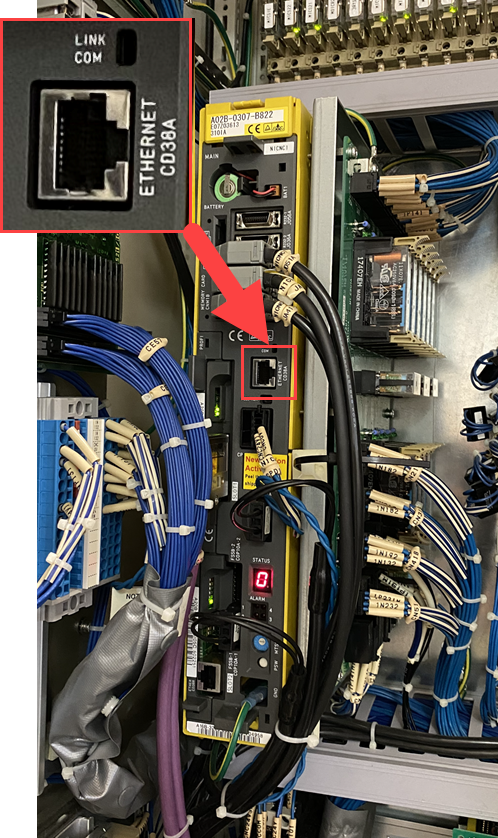
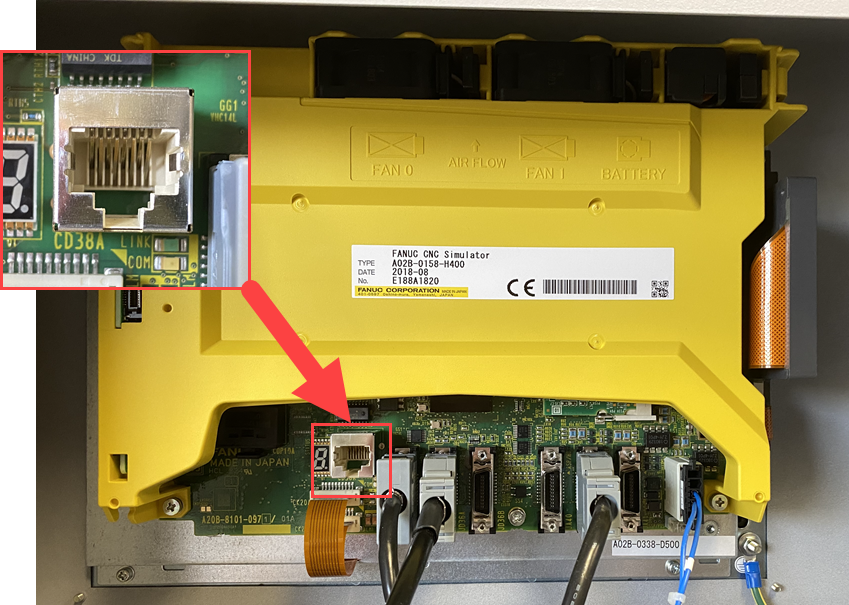
1. We are looking for the CD38A port, this is typically located in the main electrical cabinet or behind the LCD screen
2. Electrical Cabinet location, common on 16i, 18i, 21i, 30i, 31i, & 32i controls
Behind the LCD location, common on 16i, 18i, 21i, 0i controls
### Check for FOCAS2 - 2004 and Newer
This section applies to the following controls:
- Fanuc 0i-MD, 0i-TD, 0i-MF, 0i-TF
- Fanuc 30i Model A, Model A5, Model B, Model B5
- Fanuc 31i Model A, Model A5, Model B, Model B5
- Fanuc 32i Model A, Model A5, Model B, Model B5
- Essentially any Fanuc control manufactured after 2004
1 - Press **SYSTEM** button
2 - Press the right arrow soft key until you see the **EMBED PORT** or **EMBEDD** softkeys
### **If you only see the PCMCIA softkey and no EMBED PORT softkey, the machine does not have a network card and will not support FOCAS**
3 - Press **EMBED PORT** softkey
4 - Confirm you have the **FOCAS2** softkey
5 - Congratulations, your control has FOCAS
### Check for FOCAS1 - 2010 and Older
This section applies to the following controls:
- Fanuc 16i-MB, 160i-MB, 160is-MB, 16i-TB, 160i-TB, 160is-TB
- Fanuc 18i-MB, 180i-MB, 180is-MB, 18i-TB, 180i-TB, 180is-TB
- Fanuc 21i-MB, 210i-MB, 210is-MB, 21i-TB, 210i-TB, 210is-TB
1 - Press **SYSTEM** button
2 - Press the right arrow soft key until you see the **ETHPRM** softkey
3 - Press **ETHPRM** softkey
4 - Press **(OPRT)** softkey
5 - Press **EMBEDD** softkey
### **If you only see the PCMCIA softkey and no EMBEDD softkey, the machine does not have a network card and will not support FOCAS**
6 - Press **PAGE DOWN** button to get to page 2
7 - Confirm you see FOCAS1/ETHERNET
8 - Congratulations, your control has FOCAS
### **Some Fanuc controls have a Data Server addon, (also know as Fast Ethernet). This addon may include FOCAS and has similar steps as above to confirm FOCAS is available.**
- [Industrial IoT Connectivity in 4 steps](https://kb.alleantia.com/industrial-iot-connectivity-in-4-steps#main-content)
- [Industrial Connectivity in 5 minutes - Configuration Steps](https://kb.alleantia.com/industrial-iot-connectivity-in-4-steps#industrial-connectivity-in-5-minutes-configuration-steps)
- [Alleantia Platform Overview](https://kb.alleantia.com/alleantia-platform-overview#main-content)
- [Alleantia Core](https://kb.alleantia.com/alleantia-platform-overview#alleantia-core)
- [Cloud Portal](https://kb.alleantia.com/alleantia-platform-overview#cloud-portal)
- [Machine Drivers](https://kb.alleantia.com/alleantia-platform-overview#machine-drivers)
- [IIoT Apps - Connect Business Apps](https://kb.alleantia.com/alleantia-platform-overview#iiot-apps-connect-business-apps)
- [Site Manager](https://kb.alleantia.com/alleantia-platform-overview#site-manager)
- [Alleantia Core](https://kb.alleantia.com/alleantia-core#main-content)
- [Alleantia Core - Download and Configurations](https://kb.alleantia.com/alleantia-core#alleantia-core-download-and-configurations)
- [Licenses and Free Version](https://kb.alleantia.com/licenses-and-free-version#main-content)
- [License Management](https://kb.alleantia.com/licenses-and-free-version#license-management)
- [Alleantia Core - Free Version](https://kb.alleantia.com/licenses-and-free-version#alleantia-core-free-version)
- [Machine Drivers](https://kb.alleantia.com/machine-drivers#main-content)
- [How can I create a driver with spreadsheet template??](https://kb.alleantia.com/machine-drivers#how-can-i-create-a-driver-with-spreadsheet-template)
- [How can I create a driver with Driver Editor?](https://kb.alleantia.com/machine-drivers#how-can-i-create-a-driver-with-driver-editor)
- [Private Library](https://kb.alleantia.com/machine-drivers#private-library)
- [Machines connection configurations](https://kb.alleantia.com/machine-drivers#machines-connection-configurations)
- [Stream Data - IIoT Apps](https://kb.alleantia.com/stream-data-iiot-apps#main-content)
- [API REST](https://kb.alleantia.com/stream-data-iiot-apps#api-rest)
- [Modbus](https://kb.alleantia.com/stream-data-iiot-apps#modbus)
- [OPC UA](https://kb.alleantia.com/stream-data-iiot-apps#opc-ua)
- [AWS](https://kb.alleantia.com/stream-data-iiot-apps#aws)
- [Boomi](https://kb.alleantia.com/stream-data-iiot-apps#boomi)
- [Microsoft Azure](https://kb.alleantia.com/stream-data-iiot-apps#microsoft-azure)
- [Dropbox](https://kb.alleantia.com/stream-data-iiot-apps#dropbox)
- [MQTT](https://kb.alleantia.com/stream-data-iiot-apps#mqtt)
- [SQL](https://kb.alleantia.com/stream-data-iiot-apps#sql)
- [OneDrive for Business](https://kb.alleantia.com/stream-data-iiot-apps#onedrive-for-business)
- [TeamViewer](https://kb.alleantia.com/stream-data-iiot-apps#teamviewer)
- [Alleantia Certified Hardware](https://kb.alleantia.com/alleantia-certified-hardware#main-content)
- [Advantech](https://kb.alleantia.com/alleantia-certified-hardware#advantech)
- [Cisco](https://kb.alleantia.com/alleantia-certified-hardware#cisco)
- [Dell](https://kb.alleantia.com/alleantia-certified-hardware#dell)
- [Eurotech](https://kb.alleantia.com/alleantia-certified-hardware#eurotech)
- [Lenovo](https://kb.alleantia.com/alleantia-certified-hardware#lenovo)
- [Portwell](https://kb.alleantia.com/alleantia-certified-hardware#portwell)
- [Stratus](https://kb.alleantia.com/alleantia-certified-hardware#stratus)
- [Simulators and Starter Kit Industria 4.0](https://kb.alleantia.com/simulators-and-starter-kit-industria-4-0#main-content)
- [Simulators - PLCs, CNC, Energy meters](https://kb.alleantia.com/simulators-and-starter-kit-industria-4-0#simulators-plcs-cnc-energy-meters)
- [Starter Kit Industria 4.0](https://kb.alleantia.com/simulators-and-starter-kit-industria-4-0#starter-kit-industria-4-0)
- [Edge Operational Applications](https://kb.alleantia.com/edge-operational-applications#main-content)
- [Cobot Smart Service](https://kb.alleantia.com/edge-operational-applications#cobot-smart-service)
- [FAQs - Trouble Shooting](https://kb.alleantia.com/faqs-trouble-shooting#main-content)
- [Configurations](https://kb.alleantia.com/faqs-trouble-shooting#configurations)
- [System Setup](https://kb.alleantia.com/faqs-trouble-shooting#system-setup)
- [Interfaces to IIoT Apps](https://kb.alleantia.com/faqs-trouble-shooting#interfaces-to-iiot-apps)
- [Interfaces to Industrial Devices](https://kb.alleantia.com/faqs-trouble-shooting#interfaces-to-industrial-devices)
- [Connectivity](https://kb.alleantia.com/connectivity)
[](https://www.alleantia.com/)
Copyright © 2026, ALLEANTIA SRL